
4.14Muslim prayer times
Calculates the daily prayer times and Islamic calendar dates for the project's location, and runs KNX actions at those times.
Muslim prayer times calculates Imsak, Fajr, Dhuhr, Asr, Maghrib and Isha for the site, the Hijri date, and the next Islamic event. Dashboard objects can show these values, and the gateway can run KNX actions at prayer times. You find it under Server > Engines > Solar Engine > Muslim Prayer Times.
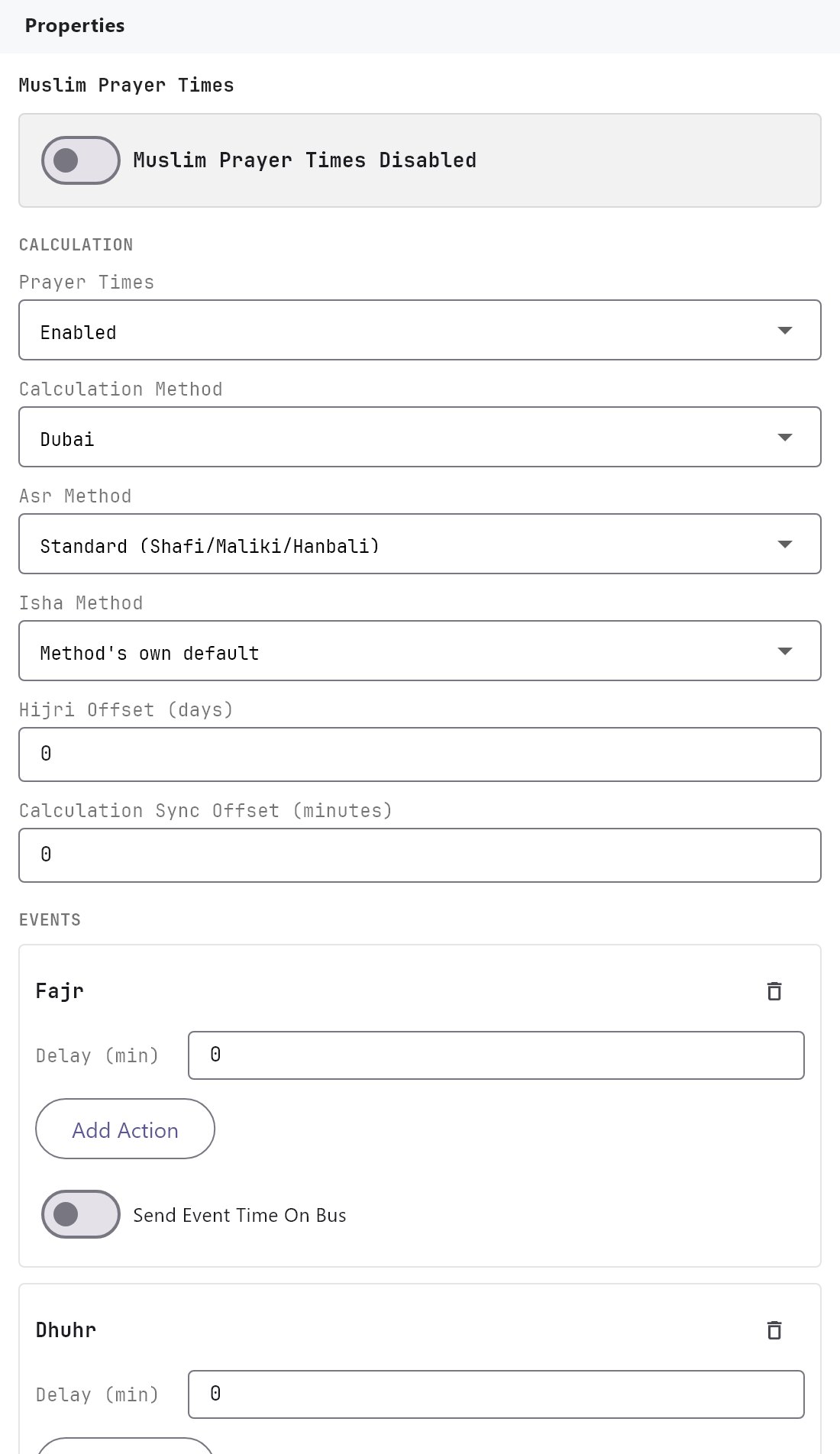
#What it does
- Calculates the six daily times from the project's latitude, longitude and timezone, using the calculation method you choose.
- Works out the Hijri date and the date of the next Islamic event.
- Runs KNX actions at a prayer time or on an Islamic event day, with an optional delay.
#Before you enable it
- Enable the Solar engine and set a location there. Prayer times use the same location.
- For actions, the KNX engine must be running.
- Ask the client which calculation method their local authority uses, and compare the results with the official timetable.
#Settings
| Setting | What it does |
|---|---|
| Enabled | Off by default. Prayer actions run only when this and Solar Engine are both on. |
| Prayer Times | Enabled (default) or Disabled. Saved with the project, but it currently has no effect on the gateway or the apps. |
| Hijri Offset (days) | -3 to 3, default 0. Hijri dates are calculated, not moon-sighted, so they can differ by a day or two from local announcements. Nudge this to match. |
| Calculation Method | Dubai (default), Umm al-Qura University, Makkah, Egyptian General Authority of Survey, Islamic Society of North America (ISNA), Muslim World League, University of Islamic Sciences, Karachi, Shia Ithna Ashari, Qum. |
| Asr Method | Standard (Shafi/Maliki/Hanbali) (default) or Hanafi. |
| Isha Method | Method's own default (default), Astronomical 18 degrees, Astronomical 15 degrees, Middle of night, One seventh of night. |
| Calculation Sync Offset (minutes) | -60 to 60, default 0. Moves all six times by this many minutes to match a local authority's timetable. Negative is earlier. |
| Events | The prayer and Islamic events and their actions, described below. |
#What each calculation method uses
| Method | Fajr sun angle | Isha | Other |
|---|---|---|---|
| Dubai | 18.2 degrees | 18.2 degrees | Dhuhr and Maghrib 3 minutes after noon and sunset |
| Umm al-Qura | 18.5 degrees | 90 minutes after sunset | |
| Egyptian General Authority | 19.5 degrees | 17.5 degrees | |
| ISNA | 15 degrees | 15 degrees | |
| Muslim World League | 18 degrees | 17 degrees | |
| Karachi | 18 degrees | 18 degrees | |
| Shia Ithna Ashari, Qum | 16 degrees | 14 degrees |
Imsak is 10 minutes before Fajr in every method. A different Isha Method replaces the method's own Isha rule. Astronomical 18 degrees and 15 degrees use that sun angle. Middle of night is halfway between sunset and the next sunrise. One seventh of night is one seventh of the night after sunset. Asr Method sets the shadow factor: 1 for Standard, 2 for Hanafi. The Calculation Sync Offset is added last.
#Events
A new project lists Fajr, Dhuhr, Asr, Maghrib and Isha, with no actions. Add Event opens a menu of the other events: Imsak, First Day of Ramadan, Eid al-Fitr, Day of Arafah, Eid al-Adha, Ashura and Islamic New Year. Each event is in the list once, and the trash icon on a card removes it. Edits apply as you type. The cards work exactly like the ones on Solar events.
Each event is a card with:
| Field | What it does |
|---|---|
| Delay (min) | Shifts the time of the event. -720 to 720, default 0. A negative number runs the action before the event. |
| Actions | The KNX writes the event runs. They are edited in the Actions editor, described below. The card shows how many it has. |
| Send Event Time On Bus | Off by default. When on, the event's own time is also written to Event Time Group Address, in the data type chosen below it: DPT 10 - Time, DPT 11 - Date, DPT 19 - Date + Time or DPT 16 - String. This is independent of the action. |
An action with an empty group address does nothing. Actions are write only: they cannot read, wait or run other system commands.
#The Actions editor
The actions are edited in one place, like the actions list of a ThinkNX project. Under ACTIONS, Edit Actions... opens a window with every action of this section in one list on the left (1-Outside light on, with the event it follows) and the fields of the selected action on the right:
| Field | What it does |
|---|---|
| Name | A label such as Outside light on. It only helps you read the list. |
| Sun Event | The event the action follows (the events of this page). Choosing another event moves the action to it, and adds the event to the page if it is not there yet. |
| Action delay (min) | Minutes after (positive) or before (negative) the event, -720 to 720, default 0. It is added to the Delay (min) of the event card, so one event can run several actions at different times, for example the outside light on at sunset + 10 and its night mode at sunset + 120. |
| Command | The KNX data type of the write. |
| Group Address | The group address to write to. It suggests your imported group addresses as you type, and has a browse button. |
| Value | ON (1) or OFF (0) for a bit; a number or text for the other types. |
The buttons under the list: Add adds an action (on the event of the selected one), Clone copies the selected action next to it, Remove deletes it, and Down and Up move it. The order only matters between actions of the same event, so Down and Up are available only next to an action of the same event. OK keeps your changes and Cancel discards them. Each event card shows how many actions it has.
The action delay needs gateway runtime 1.0.16 or later. An older gateway runs every action of an event at the event's own time.
The Islamic events fall on these Hijri dates: Islamic New Year 1 Muharram, Ashura 10 Muharram, First Day of Ramadan 1 Ramadan, Eid al-Fitr 1 Shawwal, Day of Arafah 9 Dhu al-Hijjah, Eid al-Adha 10 Dhu al-Hijjah. An Islamic event has no time of day, so its actions run at 00:00 on that date plus the delay. A delay of -60 runs at 23:00 the evening before.
#System values
Objects with Protocol = System Object can show these under Muslim Prayer Times: Imsak, Fajr, Dhuhr, Asr, Maghrib, Isha, Hijri Date, Next Prayer Name, Time to Next Prayer (shown like 2H 30M), Next Islamic Event Name and Next Islamic Event Date. After Isha, the next prayer is tomorrow's Fajr. On a State Action, Format chooses AM/PM or 24-hour. See Using system objects and State Action.
The apps calculate these values themselves from the project settings. They do not depend on the Enabled switches.
#How it works on the gateway
- Each second the gateway compares the current minute (in the project's timezone) with each event's time plus delay, and runs the actions once. An action with its own Action delay runs at the event time plus that delay. A missed minute is not caught up.
- Actions need Solar Engine and Muslim Prayer Times both on and a valid location.
- The Hijri calendar is an arithmetic calendar, so the offset above is the only way to match a local moon sighting.
#Example
Switch the evening lights on at Maghrib and off 30 minutes after Isha. The method is Dubai.
- Enable Solar Engine and Muslim Prayer Times.
- Leave Calculation Method on Dubai and Calculation Sync Offset at
0. Compare the times the apps show with the official timetable. - Under ACTIONS, click Edit Actions... and Add. Name it
Lights on, set Sun EventMaghrib, keep the bit command, set Group Address to1/3/5and Value to ON (1). - Add a second action. Name it
Lights off, set Sun EventIsha, Action delay (min)30, Group Address1/3/5and Value OFF (0). Click OK.
#Tips and common problems
- The times differ from the mosque. Try another calculation method first, then use the sync offset.
- The Hijri date is one day out. Change Hijri Date Offset (days).
- Times are an hour off. See how the timezone is read on the Solar engine page.
- Prayer Times set to Disabled changes nothing. Use the main Enabled switch to stop prayer actions.