
4.10Zigbee
Runs the gateway's built-in Zigbee coordinator, pairs Zigbee devices, and turns their values into system values and KNX telegrams.
The Zigbee interface runs the Zigbee radio that is built into the gateway. You pair switches, RGB lights and sensors with it, give each of their values a reusable name, and optionally copy those values to KNX group addresses. You find it under Server > Interfaces > Zigbee.
#What it does
- Forms a Zigbee network on the gateway, using the zigbee-herdsman library.
- Pairs new devices and remembers them on the gateway. Paired devices stay known to the gateway even if they are not in a project yet.
- Publishes every value you configure as a system value that dashboard objects can use.
- Optionally writes a value to a KNX group address, and for on/off, accepts KNX commands in the other direction.
#Before you enable it
- Set the gateway's network address in the Configurator settings, and save the gateway deploy token there. Scanning and pairing talk to the gateway directly. If the dialog shows Gateway authentication required., the token is missing or wrong. See Deploying a project.
- Choose PAN ID and Channel before you pair devices.
- Turn Enabled on and deploy the project first, so the coordinator starts with your values.
#Settings
| Setting | What it does |
|---|---|
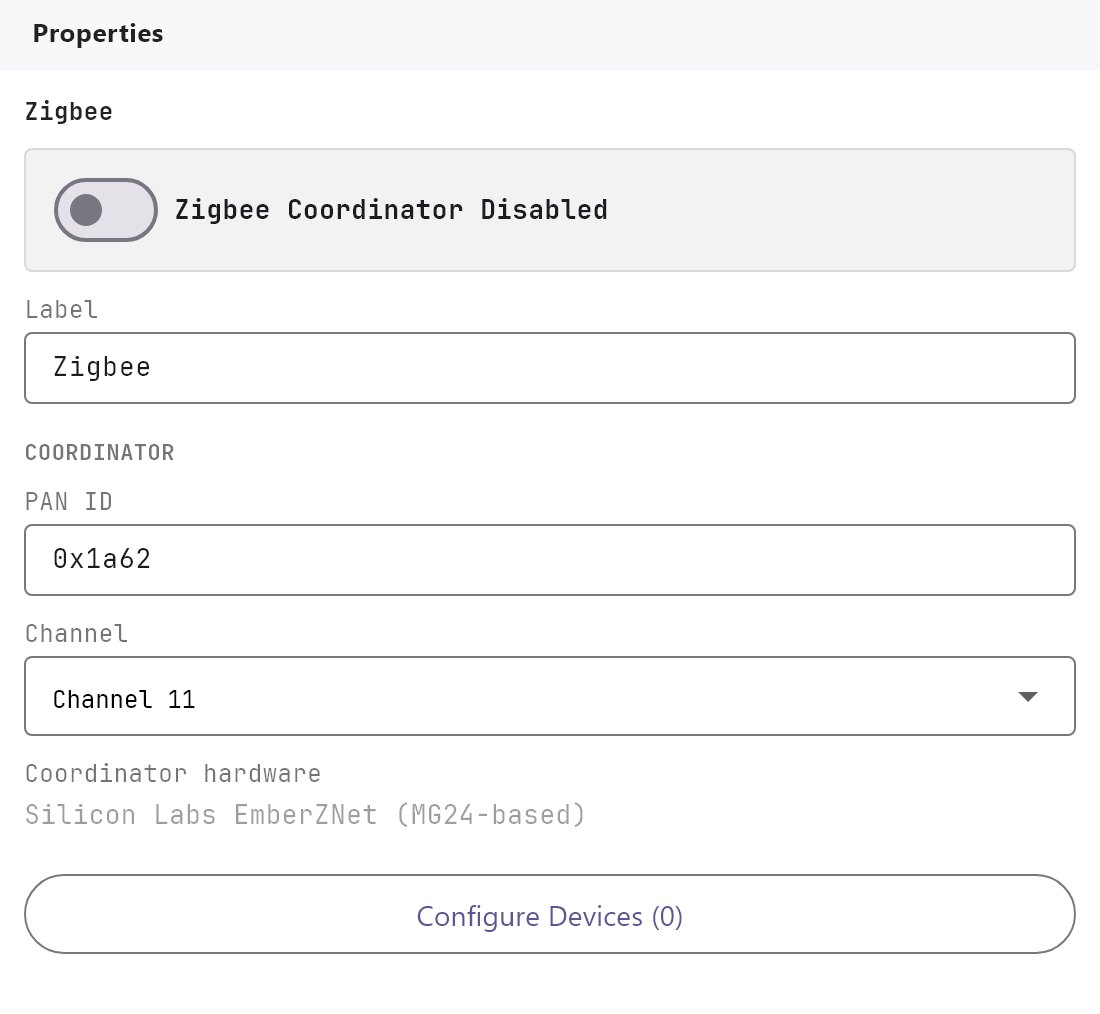
| Enabled | Off by default. When switched off in a deployed project, the coordinator is stopped. |
| Label | The name shown in the Server list. Default Zigbee. |
| PAN ID | The network ID, entered in hexadecimal. Default 0x1a62. The 0x prefix is optional. |
| Channel | Channel 11 (default), 15, 20 or 25. Channels 15, 20 and 25 sit between the common WiFi channels 1, 6 and 11. |
| Coordinator hardware | Read only: Silicon Labs EmberZNet (MG24-based). The radio is on the gateway board. |
| Paired devices | Configure Devices (n) opens the Zigbee Devices dialog. n is the number of devices in the project. |
PAN ID and Channel are read when the coordinator starts. A deploy does not reconfigure a coordinator that is already running. Scan for Devices starts the coordinator with the defaults (0x1a62, channel 11) if it is not already running, it does not send the values from this page.
#Zigbee Devices dialog
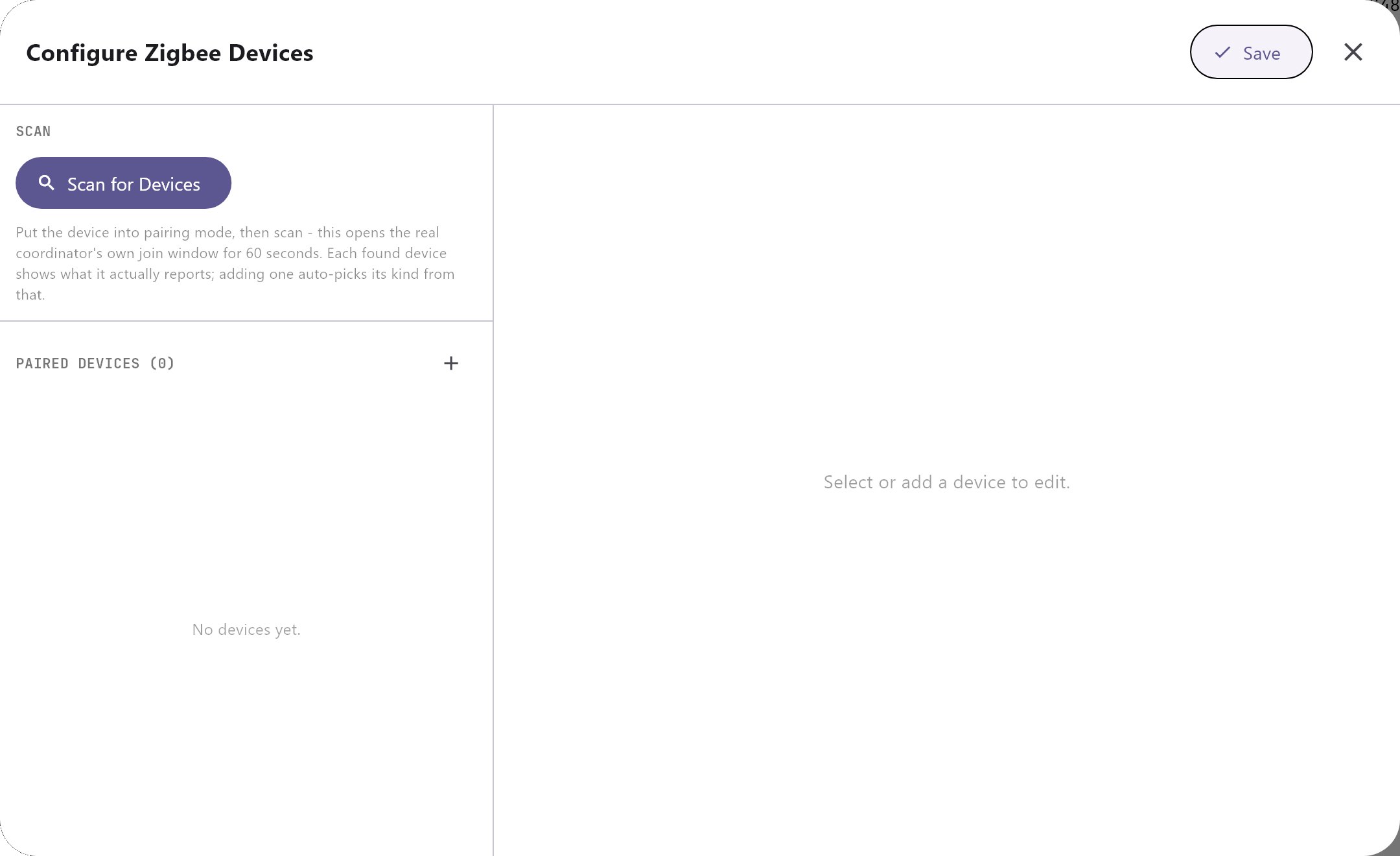
The dialog has a scan area at the top, a device list on the left and Device Details on the right. Changes apply as you type: Cancel and Save Changes both only close the dialog.
#Scan for new devices
- Click Scan for Devices. The gateway starts the coordinator and opens pairing for 60 seconds.
- Put the device into pairing mode (usually by resetting it or power-cycling it).
- The device appears with its IEEE address, model and manufacturer. While it is being identified it shows interviewing.... Add is available once it has finished.
- For Tuya switches, press every physical button once so the datapoints seen hint shows each gang.
Each scan result also lists its Capabilities, such as On/Off, Level Control or Color Control. Add fills in the name, the IEEE address and a starting Device type guess.
You can also pair from Diagnostics > Zigbee. Click Permit Join (60s), then reset the device. That tab lists every paired device with its signal, last seen time and Tuya datapoints, and Check Topology shows which router each device uses.
#Device tab
| Field | What it does |
|---|---|
| Name | Shown in pickers, for example Hallway Light - On/Off. |
| IEEE address | The device's unique address. Filled in when added from a scan. |
| Device type | Smart Switch (on/off only), RGB Light (on/off + brightness + color), Motion Sensor (occupancy, read-only) or Temperature/Humidity Sensor (read-only). |
| Two gang (2 relays) | Smart Switch only. Turn on for a device with two independent relays. |
| Enabled | On by default. A device that is off is ignored by the gateway. |
The scan guesses the device type: Color Control gives an RGB light, Occupancy Sensing or IAS Zone without On/Off gives a motion sensor, Temperature or Humidity without On/Off gives a temperature/humidity sensor, anything else gives a switch. Two gang is switched on automatically when datapoint 2 has been seen. Correct either by hand if needed.
#Value tabs
Each tab has the same fields. Reusable value ID is the name other objects use; each device starts with a unique ID such as zigbee:zigbee_device_1_1a2b3c4d.onOff, which you can edit. Send value to KNX copies the value to a group address.
| Device type | Tabs | Value | KNX datatype |
|---|---|---|---|
| Smart Switch | On/Off (or On/Off (Gang 1)), On/Off (Gang 2) | on or off | DPT 1.001 |
| RGB Light | On/Off, Brightness, Color | on/off; brightness 0-100%; colour as red, green, blue, white (0-255 each, white stays 0) | 1.001; 5.001; 251.600 (RGBW) |
| Motion Sensor | Occupancy | true while motion is detected | 1.001 |
| Temperature/Humidity Sensor | Temperature/Humidity | temperature in degrees C; humidity in % | 9.001; 9.007 |
#How it works on the gateway
- Coordinator. The gateway uses an EmberZNet coordinator through zigbee-herdsman and keeps its network data in its own database. If the radio disconnects, the gateway retries every 10 seconds.
- Standard devices. On/off, level and colour reports are read from the standard Zigbee clusters. A colour light's colour is built from its hue, saturation and level reports.
- Tuya devices. Many Tuya switches (model TS0601) use Tuya's own datapoint protocol. Gang 1 is datapoint 1 and gang 2 is datapoint 2, unless the gateway has a stored definition for that exact device that uses different numbers. The gateway also answers a Tuya device's time-sync request.
- System values. Every reported value is published as a system value, changed values are pushed to connected apps. You pick them as Protocol = System Object (see Using system objects), or as the On/Off source of a Switch. Devices that are added and enabled also publish every standard numeric or on/off attribute they report as
zigbee:<IEEE address>.<cluster>.<attribute>, although these are not listed in the pickers. - Zigbee to KNX. With Send value to KNX on and a group address set, the gateway writes the value with the datatype above. The first report is always written, after that only changes.
- KNX to Zigbee. Only on/off works in this direction. A KNX write to a device's on/off address switches that relay (a non-zero value means on). This covers gang 1 of any type, including RGB lights, and gang 2 of a two gang switch. The gateway ignores the echo of its own writes for 15 seconds. Brightness, colour and sensors are one way only.
- Controlling from the apps. Commands use the standard On/Off cluster when the device has one, otherwise the Tuya datapoint. An RGB light is controlled as a device by an RGB Lamp object.
The Configurator dialog offers one or two gangs. The gateway also understands further gangs, but there is no control for a third gang in this dialog.
#Example
A two-gang Tuya wall switch for the kitchen, with gang 1 mirrored to KNX.
- Enable Zigbee and deploy.
- Open Configure Devices, click Scan for Devices, reset the switch and press both buttons once.
- When the scan shows datapoints seen: 1, 2 (looks like 2-gang), click Add.
- Rename it
Kitchen switch. Check Two gang (2 relays) is on. - On On/Off (Gang 1) turn on Send value to KNX and set the group address
1/0/1. - Deploy again. Pressing button 1 now writes to
1/0/1, and a KNX write to1/0/1switches relay 1.
#Tips and common problems
- Scan shows nothing. Check the deploy token and gateway address in the Configurator settings, and that Zigbee is enabled and deployed. Pairing mode on most devices only lasts a short time, so start the scan first and then reset the device.
- Add is greyed out. The device is still being identified. Wait until interviewing... disappears.
- Wrong number of gangs. Gang count cannot be read from pairing alone. Press each button during the scan and watch the datapoints hint.
- Battery sensors do not answer pings. They only wake briefly. Use Last Seen in Diagnostics > Zigbee.