
3.7Ceiling Fan
An on/off and speed control for a KNX-controlled fan, with a speed popup.
The Ceiling Fan is an icon that shows whether a fan is running. Tapping it opens a speed popup. What the popup offers depends on the Fan Controller you choose: speed levels 1 to 4 for a 4-speed regulator or a TRIAC dimmer, or a slider with Low, Medium and High presets.

#When to use it
- Ceiling fans, extractor fans and similar loads on KNX: on a 4-speed fan regulator, on a TRIAC dimmer channel, or with a plain percentage speed object.
- Fans you want to control by voice (Apple Home, Alexa, Google Home or Home Assistant).
For an on/off load with no speed, a Switch is simpler.
#Properties
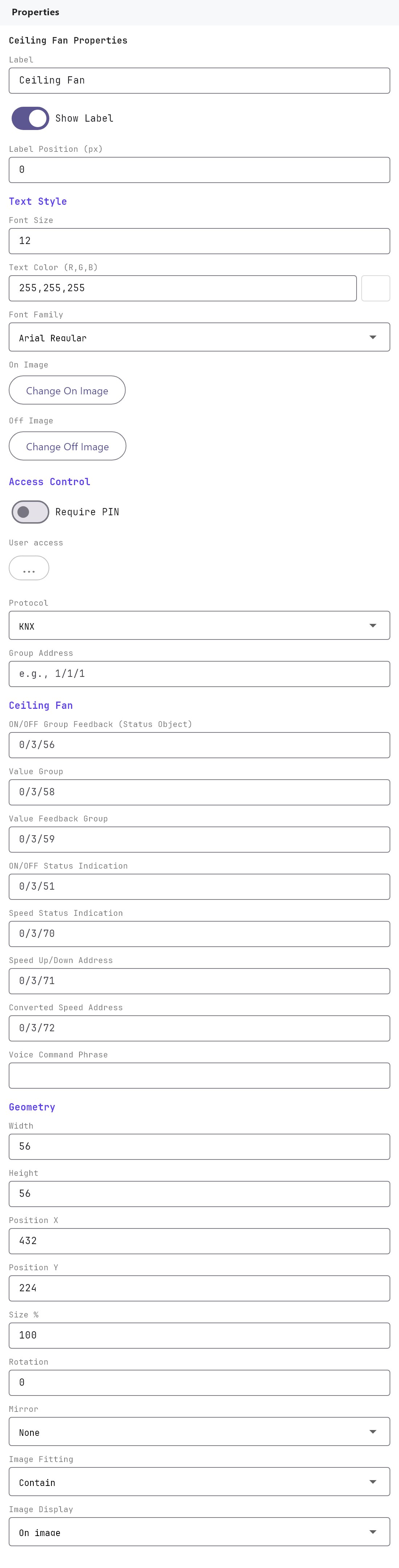
Label, Text style, On/Off images, Access control, Voice and Position and size work as described on Common properties. The fields below are specific to the Ceiling Fan.
#Fan controller and KNX addresses
| Property | What it does |
|---|---|
| Protocol | KNX. The apps only control a Ceiling Fan over KNX. |
| Fan Controller | The KNX device that drives the fan: 4-speed regulator (the default for a new fan), TRIAC dimmer or Custom (all addresses). It decides which address fields are shown and what the popup offers. A fan saved before this choice existed is set to Custom and keeps every address field. |
The address fields for each controller (all group addresses):
| Fan Controller | Address fields |
|---|---|
| 4-speed regulator | ON/OFF Group Address, ON/OFF Status Indication, Speed Group (Percentage) (a 1-byte percentage, DPT 5.001) and Speed Status Indication. |
| TRIAC dimmer | ON/OFF Group Address, ON/OFF Group Feedback (Status Object), Value Group (percentage control, DPT 5.001) and Value Feedback Group. |
| Custom (all addresses) | ON/OFF Group Feedback (Status Object), Value Group, Value Feedback Group, ON/OFF Status Indication, Speed Status Indication and Converted Speed Address. There is no separate ON/OFF Group Address: on and off go through the Value Group. |
In the Custom layout, Converted Speed Address is a percentage speed address (DPT 5.001) that is read as status, and voice assistants write the requested speed to it.
#How it behaves in the apps
Icon. The icon shows the On image when the latest status value is above zero and the Off image otherwise. If you choose a Low Speed Image, the icon shows that image instead of the On image while the speed is above 0 and up to 50 percent. Without a Low Speed Image the On image shows at every speed. The app uses the newest telegram seen on any of the status addresses (the two feedback groups, the two status indications, the Value Group, and the Converted Speed Address).
Speed popup. Tapping a KNX Ceiling Fan opens the speed popup. It depends on the Fan Controller.
4-speed regulator. There is no slider. The popup shows Off and the levels 1 to 4, a Speed box that reads Off or Level 1 to Level 4, and ON and OFF buttons:
- a level button writes ON to the ON/OFF Group Address, then 25, 50, 75 or 100 percent for levels 1, 2, 3 and 4 to the Speed Group (Percentage) (DPT 5.001);
- Off and OFF write OFF to the ON/OFF Group Address;
- the current level comes from the Speed Status Indication. The regulator's own bands are 0.2 to 25.2 percent for level 1, 25.3 to 50.3 for level 2, 50.4 to 75.4 for level 3 and above that for level 4.
TRIAC dimmer. The popup has the slider, with - and + buttons that change the speed by 10 points, and the same Off and 1 to 4 buttons. The slider and the levels write the percentage to the Value Group and ON or OFF to the ON/OFF Group Address.
Custom (all addresses). The older popup:
- a slider from 0 to 100 percent, with - and + buttons that change the speed by 10 points;
- Low, Medium and High buttons that send 33, 66 and 100 percent;
- a Speed box with the current percentage, and ON and OFF buttons.
In the Custom layout, moving the slider writes the percentage to the Value Group (DPT 5.001). The ON button sends the current speed, or 100 percent if the speed is 0, and OFF sends 0 percent, so the Value Group switches the fan on and off. (A project made before the Group Address field was removed still sends ON or OFF, DPT 1.001, to that address as well.) The popup opens at the last known speed, or 100 percent if none has been seen. A missing address produces a message such as "Set a Value Group address" (or "Set a Speed address" for a 4-speed regulator).
Voice. A Ceiling Fan with a Voice Command Phrase is published as a fan with on/off and speed. The gateway picks the addresses by controller. A 4-speed regulator takes speed requests on the Speed Group (Percentage) and reports on its Speed Status Indication and ON/OFF Status Indication. A TRIAC dimmer takes them on the Value Group and reports on its Value Feedback Group and ON/OFF Group Feedback. Plain on/off by voice writes to the ON/OFF Group Address, so it works with a regulator or a dimmer; a Custom fan has no such address, and voice controls it through its speed.
#Example
A bedroom fan on a 4-speed regulator.
| Field | Value |
|---|---|
| Label | Bedroom fan |
| Protocol | KNX |
| Fan Controller | 4-speed regulator |
| ON/OFF Group Address | 1/4/1 |
| ON/OFF Status Indication | 1/4/2 |
| Speed Group (Percentage) | 1/4/3 |
| Speed Status Indication | 1/4/4 |
| Voice Command Phrase | Bedroom fan |
| Room | Bedroom |
Tapping level 2 in the popup writes ON to 1/4/1 and 50 to 1/4/3. Tapping Off writes OFF to 1/4/1.
#Tips and common problems
- Speed buttons do nothing. Fill in the speed address: the Speed Group (Percentage) for a 4-speed regulator, the Value Group for a TRIAC dimmer or a Custom fan. Without it the popup cannot set a speed.
- The fan has steps, not a percentage. Choose 4-speed regulator. The popup then writes 25, 50, 75 and 100 percent for the four levels. If your regulator expects other values, check how its speed object maps percentages to steps.
- The level shown is wrong. Check the Speed Status Indication (regulator) or Value Feedback Group (dimmer) and that the device reports its percentage in the same scale.
- The icon stays Off. Check that a status address reports the fan's state and that it responds to read requests so the gateway can read it after a deploy.