
3.8Roller Shutter
An up, down, stop and position control for a KNX blind, shutter or curtain, with a popup in the Veltnova client.
The Roller Shutter object controls a motorised blind, roller shutter or curtain. In the Veltnova client, tapping it opens a popup with Up and Down buttons, a STOP button and a draggable position graphic.
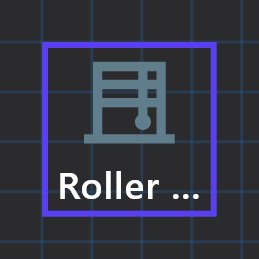
#When to use it
- KNX shutter and blind actuators with the usual group objects: move up/down, stop or step, absolute position and position feedback.
- Curtain motors that use the same group objects. Choose the Curtain visual style so the icon and popup show sideways movement.
#Properties
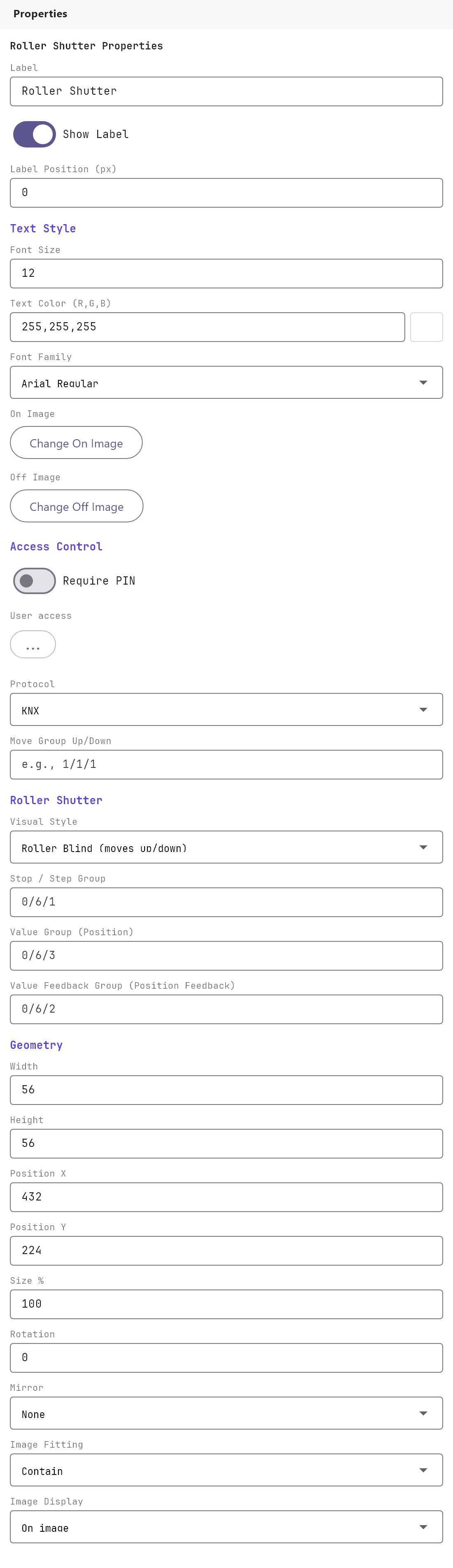
Label, Text style, On/Off images, Access control and Position and size work as described on Common properties. The fields below are specific to the Roller Shutter.
#Style and addresses
| Property | What it does |
|---|---|
| Protocol | KNX. The apps only control a Roller Shutter over KNX. |
| Visual Style | Roller Blind (moves up/down) (default) or Curtain (slides left/right). Chooses the icon and the graphic in the popup. It does not change what is sent to the bus. |
| Move Group Up/Down | The group address that moves the shutter, as a one-bit up/down value (DPT 1.008): 0 is up, 1 is down. |
| Stop / Step Group | The group address that stops the movement or steps the slats (DPT 1.010). The STOP button writes to it. |
| Value Group (Position) | The group address the app writes the target position to, as a percentage (DPT 5.001). Needed for position control. |
| Value Feedback Group (Position Feedback) | The group address that reports the current position (DPT 5.001). |
| Time Schedule | Disabled (default) or Enabled. When enabled, the shutter can open and close by itself on a weekly schedule that your customer sets in the app. See Opening and closing on a schedule. |
The built-in icon is a single picture per Visual Style and does not change with the shutter state. Set custom images if you want the icon to change with the position:
- Off Image: shown when the shutter is fully open (0 percent).
- On Image: shown when the shutter is closed (100 percent).
- Partial Image (optional): shown while the shutter is anywhere between fully open and fully closed. Without it, the On Image shows at every position above 0.
#How it behaves in the apps
Tapping opens the popup (KNX only):
- a large percentage for the current position, shown as
--when no Value Group is configured; - a graphic of the blind (it fills from the top) or the curtain (two panels that slide towards the middle). Drag it to choose a position, and the app writes the percentage to the Value Group when you let go. 0 percent is fully open and 100 percent fully closed. Without a Value Group the graphic is dimmed and the hint reads "Set a Value Group address to enable position control";
- two arrow buttons: Down (or left for a curtain) writes 1 to the Move Group, and Up (or right) writes 0;
- a STOP button that writes 1 to the Stop / Step Group.
A missing address shows a message such as "Set a Move Up/Down group address for ...". The current position is read once, when the popup opens, from the Value Feedback Group (or the Value Group if there is no feedback address). It does not update while the popup stays open.
Gateway. The gateway decodes the Move Group as DPT 1.008, the Stop / Step Group as 1.010 and the two position addresses as 5.001.
#Opening and closing on a schedule
Set Time Schedule to Enabled on the shutter, enable the Switch schedule master under Server and deploy. The popup then has a Configure Time button, where the customer sets the schedule without the installer.
A schedule is a list of periods. Each period has a name, an on/off tick, the weekdays it applies to, and two events:
- Open: writes 0 (up) to the Move Group Up/Down.
- Close: writes 1 (down) to the Move Group Up/Down.
Each event is either a Time (a clock time, such as 07:00) or follows the sun: Dawn, Sunrise, Sunset or Dusk. For a sun event, an Offset moves it by up to 240 minutes: a negative number is earlier, a positive number later. Open and Close are chosen separately, so a period can open at sunrise and close at 21:00.
- The sun times come from the gateway's location (Server > Gateway). With no location set, a period that follows the sun does not run.
- Dawn and Dusk are the start and end of civil twilight, a little before sunrise and after sunset.
- Each event runs once a day, in its own minute. If the gateway was off or restarting at that moment, it still runs when the gateway is back, as long as that is within 10 minutes.
- The periods are stored on the gateway, up to 64 per shutter, and a redeploy does not change them.
- A shutter with no Move Group Up/Down, or one that is not on KNX, is skipped.
#Example
A living-room blind.
| Field | Value |
|---|---|
| Label | Living room blind |
| Protocol | KNX |
| Move Group Up/Down | 2/1/1 |
| Visual Style | Roller Blind (moves up/down) |
| Stop / Step Group | 2/1/2 |
| Value Group (Position) | 2/1/3 |
| Value Feedback Group (Position Feedback) | 2/1/4 |
Dragging the graphic to 40 percent writes 40 to 2/1/3. Pressing STOP writes 1 to 2/1/2.
#Tips and common problems
- Up and Down are swapped. Some actuators invert the up/down object. Change the actuator's ETS parameter; the object always writes 0 for Up and 1 for Down.
- The position does not match the real shutter. The feedback group must report a percentage in the same direction as the Value Group (0 open, 100 closed). Check the actuator's position objects.
- The graphic cannot be dragged. Fill in the Value Group (Position).
- STOP does nothing. Fill in the Stop / Step Group, and check the actuator expects a one-bit write on it.
- There is no Configure Time button. Set Time Schedule to Enabled on the shutter and deploy.
- The shutter does not move at the set time. Check that the Switch schedule master is enabled and deployed, the period and the weekday are ticked on, and the gateway's timezone and location are right.