
3.28Action Button
A tap button, shown as an icon or as text, that sends a fixed KNX value or jumps to another page.
The Action Button runs one command each time it is tapped. The command is chosen in a library of system commands. Among the commands that do something in the apps are writing a fixed value to a KNX group address, jumping to another page, and the screen commands that open a popup, hide an object or a page, or colour the header.

#When to use it
- A "Back to home" or "Go to cameras" button that opens a specific page.
- A one-shot KNX write that needs a fixed value: send
1to open a gate relay, send50to a scaling address, send a text to a display. - Not for on/off control with live feedback: use a Switch. For a button that also shows the state of a value, use a State Action.
#What you need first
- For a KNX write: a group address and the KNX engine enabled on the gateway.
- For a page jump: at least one panel with a page in the project.
#Properties
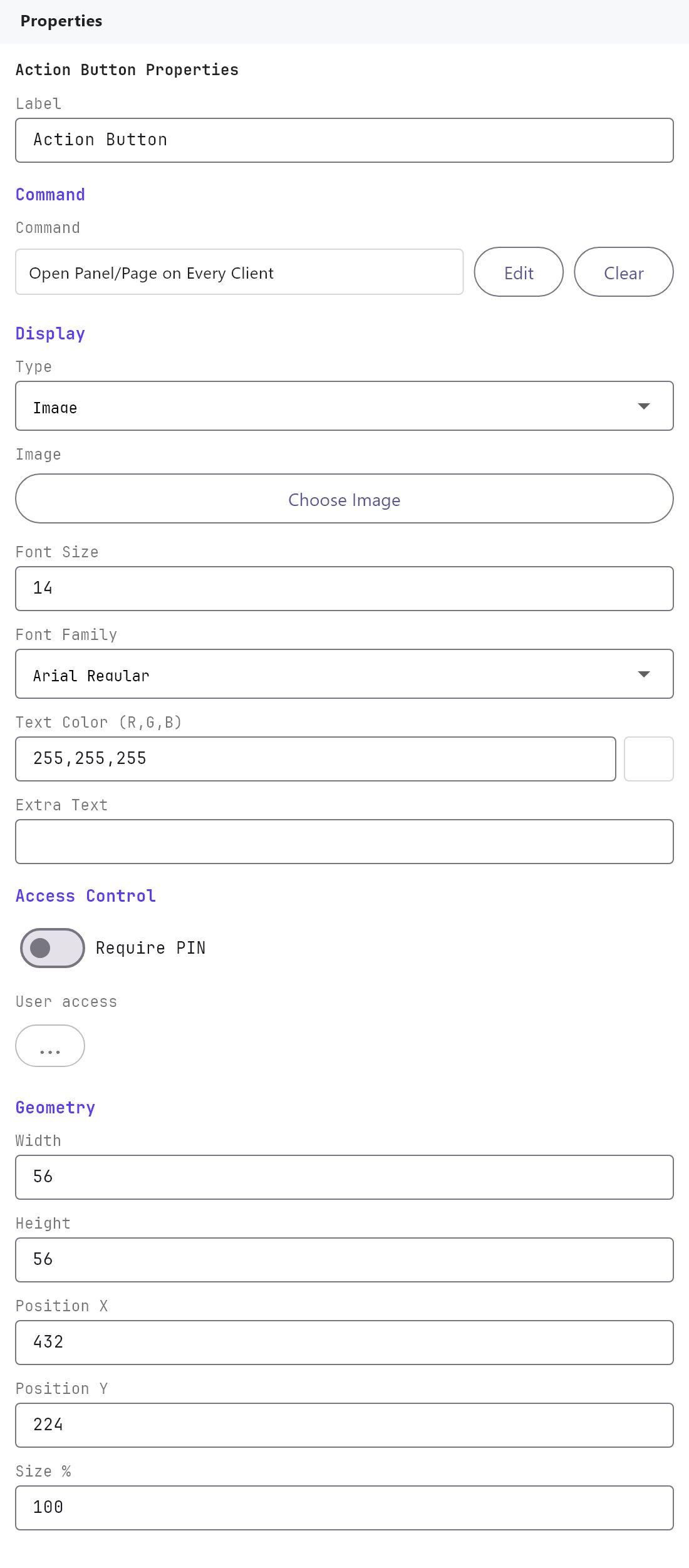
Label, Show Label, Label Position, Text Style, Access Control and the Width, Height, Position X, Position Y, Size %, Rotation, Mirror, Image Fitting and Image Display fields work as described in Common properties. A new Action Button is 56 by 56 and starts with the command Open Panel/Page on Every Client and the built-in action icon.
#Action Button settings
| Property | What it does |
|---|---|
| Command | Shows the chosen command. Edit opens the command library (see below). |
| Type | Image (default) shows an icon with the Extra Text under it. Text shows only the Extra Text, with no icon, aligned and sized by the Text Style fields. |
| Image | Only for Type Image. Choose Image or Change Image opens the clipart gallery (built-in images, or Import Custom Image). Remove Image clears the choice. The default is the built-in action icon. |
| Custom Font | Off by default. When on, a Text Dimension field (8 to 72) appears. Both are saved in the project but the apps in this version do not read them; set the size and font with Font Size and Font Family under Text Style. |
| Text Color | The colour of the text. It edits the same value as the Text Color under Text Style, so changing one changes the other. |
| Extra Text | The caption under the icon, or the whole button text in Type Text. Empty by default. A Type Text button with an empty Extra Text shows the Label instead. |
| Scale | A number from 1 to 1000, empty by default (meaning 1). The Veltnova client does not use it; use Size % to change the size. |
#The command library
Edit opens a window with the list System on the left, grouped by category, and the Parameters of the selected command on the right. Picking a KNX command also sets the object's protocol to KNX; all others set it to Internal.
For Open Panel/Page on Every Client and Open Panel/Page on One Client the parameters are:
| Parameter | What it does |
|---|---|
| Function | The panel (top-level entry) that contains the page. |
| Page | The page to open. Choosing a panel selects its first page. |
| Close popup if opened | A text box, 0 by default (0 disable, 1 enable). Saved but not used by the apps in this version. |
- A panel with no pages. New objects can only be added to a page, so a panel normally has at least one. A panel from an older project that has no pages still works: choose only the Function and the button opens the panel itself.
- What the window shows is what is kept. A new Action Button starts with this command. The window shows the first panel in the list, with its first page, and those are saved as soon as you open the window, even if you do not change anything. A button that was saved with no panel and no page opens the first panel, the one on the far left of the header (usually the dashboard), so a "Dashboard" button needs no further setting.
For the screen commands the popupId, pageId, objectId and userId parameters are lists of what the project contains. The soundId parameter is a list of the sounds. The clientId of a client command is the device id of the app, shown in the gateway console's Clients tab. For every other command the parameters are plain text boxes named after the parameter, except groupAddress (a KNX address box with autocomplete), and for the two Network I/O commands that take an id (a list of the inputs or outputs configured in the Network I/O Gateway).
What actually runs
| Command | Parameters | In the current apps |
|---|---|---|
| Open Panel/Page on Every Client | pageId, functionId | Runs. The tapped app jumps to the chosen page, and every other app connected to the same gateway on the local network follows. Apps that reach the gateway through the cloud do not follow yet. |
| Open Panel/Page on One Client | pageId, functionId, clientId | Runs. Only the tapped app jumps to the chosen page. |
| Write KNX Bit (DPT 1) | groupAddress, value | Runs. Writes DPT 1.001. |
| Write KNX 4-bit Control (DPT 3) | groupAddress, value | Runs. Writes DPT 3.007. |
| Write KNX Unsigned Byte (DPT 5) | groupAddress, value | Runs. Writes DPT 5.001. |
| Write KNX Signed Byte (DPT 6) | groupAddress, value | Runs. Writes DPT 6.010. |
| Write KNX 2-byte Unsigned (DPT 7) | groupAddress, value | Runs. Writes DPT 7.001. |
| Write KNX 2-byte Signed (DPT 8) | groupAddress, value | Runs. Writes DPT 8.001. |
| Write KNX 2-byte Float (DPT 9) | groupAddress, value | Runs. Writes DPT 9.001. |
| Write KNX 4-byte Unsigned (DPT 12) | groupAddress, value | Runs. Writes DPT 12.001. |
| Write KNX 4-byte Signed (DPT 13) | groupAddress, value | Runs. Writes DPT 13.001. |
| Write KNX 4-byte Float (DPT 14) | groupAddress, value | Runs. Writes DPT 14.000. |
| Write KNX Text (DPT 16) | groupAddress, value | Runs (DPT 16.001). |
| Write KNX 3-byte Unsigned | groupAddress, value | Runs (DPT 12.001). |
| Run CAN Command | canCommandId, value | Runs. The gateway sends the frame of the chosen command of the CAN interface. The value (optional) fills the {u8}, {u16}... place in the command's data. The command is picked from a list of the project's CAN commands. |
| Run Modbus Command | modbusCommandId | Runs. The gateway sends the chosen command from a Modbus device's Commands tab. See Modbus devices and datapoints. |
| Write Modbus Value | modbusValueId, value | Runs. The gateway writes the value to a Modbus datapoint that has a Write function, through its scale and data type. |
| Write KNX Scene Number (DPT 17) | groupAddress, value | Runs. Writes DPT 17.001, a scene number from 0 to 63. |
| Read KNX Group Value | groupAddress | Runs. The gateway asks the bus for the current value of the group address. The answer updates every object that shows that address. |
| Restart KNX Device | deviceAddress | Not executed. |
| Wait | milliseconds | Not executed. |
| Go Back to Previous Page | none | Runs. The tapped app returns to the page it was on before the current one. |
| Open / Close Popup (every client, one user, one client) | popupId, userId, clientId | Runs. The popup is picked from a list of the project's popup pages. The gateway sends the command to the apps it is meant for: every app, the apps signed in as that user, or the one app with that client id. |
| Toggle Object (every client or one client) | objectId, clientId | Runs. Hides the object, and shows it again the next time the command runs. The object is picked from a list of the project's objects. |
| Toggle Page (every client or one client) | pageId, clientId | Runs. Hides the page from the page tabs, and shows it again the next time. |
| Toggle Group (every client or one client) | groupId, clientId | Not executed. |
| Set Header Alert Color (every client or one client) | color, clientId | Runs. The header takes the colour (#FF0000 or 255,0,0). An empty colour clears the alert. |
| Send Push Notification, Send Push Notification to User, Send Email | title, message, userId, recipients, subject | Not executed. |
| Run Windows Process (every client or one client), Open iOS URL Scheme | command, clientId, url | Not executed. |
| Send Intercom DTMF Tone, Make SIP Call, Answer / Reject Doorphone Call, Capture Doorphone Snapshot, Show Last Doorphone Capture | tone, destination, doorphoneId | Not executed. |
| Mute SIP Ring (every client, one client, user) | clientId, userId | Runs. The apps it is meant for stop playing the ring sound of intercom calls. The call still shows and can be answered. The mute lasts until the app is restarted. |
| Play / Stop Alert Sound (every client, user clients) | soundId, userId | Runs. The apps it is meant for play the chosen sound over and over until a Stop command arrives, or for at most 10 minutes. The sound is chosen from a list: the four ring tones and an alarm. The app plays it only while it is open. |
| Set Screen Backlight (every client, user clients) | level, userId | Not executed. |
| Send Voice Message Packet | recipient, packet | Not executed. |
| Refresh Network Virtual Input | inputId | Runs. The gateway fetches that HTTP request input now and updates its value. The input is picked from a list of the virtual inputs in the project. A listener input cannot be refreshed. |
| Run Configured Network Output | outputId | Runs. The gateway sends that output of the Network I/O gateway, picked from a list of the outputs in the project. |
| Send HTTP Request | method, url, payload | Runs. The gateway sends the request (GET, POST, PUT or DELETE). |
| Send TCP Command, Send UDP Command | target, payload | Runs. The gateway sends the text to host:port. |
| Wake-on-LAN | macAddress | Runs. The gateway sends the magic packet for that MAC address. |
"Not executed" means the command can be chosen and is saved in the project, but the Veltnova client does nothing with it when the button is tapped. The command categories in the library are KNX Actions, Navigation & Popups, Visibility Rules, Header Alerts, Notifications, Client Device Actions, SIP / Intercom, Audio Alerts, Screen Backlight, Voice Messaging and Network I/O.
#How it behaves in the apps
- KNX write commands: the app sends the write to the gateway, which puts the telegram on the KNX bus. The value is taken from the value parameter; if it is empty,
1is sent. The group address is the groupAddress parameter. If it is empty, the app shows "Set a KNX group address for ..." and sends nothing. You must be signed in; if the session has expired the app asks you to sign in again. - Page jump: the app switches to the chosen page and does nothing else.
- Screen commands: the gateway checks the command (the popup, page, object or user must exist in the deployed project) and sends it to the apps. What a command hides or colours lasts until the app is restarted; the apps do not share it later. An app that is not connected at that moment does not receive it. You must be allowed to use the button (its Access Control).
- A button with no command, or with a command from the "Not executed" rows, does nothing when tapped.
- In Image mode the Veltnova client shows the icon with the Extra Text underneath. In Text mode it shows only the text, sized from Font Size under Text Style.
- The Veltnova client does not apply Rotation or Mirror to this object.
#Example
A gate-open button that sends 1 to a relay group address:
- Add an Action Button. Set Label to
Gate open button. - Click Edit next to Command. Under KNX Actions, choose Write KNX Bit (DPT 1).
- Set groupAddress to
2/0/5and value to1. Click OK. - Type:
Image. Image: choose a gate icon from the gallery. - Extra Text:
Open gate. - Deploy, tap the button in the app, and check the gateway console's Monitor tab for
2/0/5receiving1.
For a button that returns to a dashboard page, choose Open Panel/Page on Every Client, set Function to the panel and Page to Home.
#Tips and common problems
- A KNX write that must be released (momentary press and release, or an on then off pulse) is not possible with one Action Button, because it sends one write per tap. Use a Switch with a press and release Switching Type, or do the timing in a KNX actuator.
- If the command list offers something that has no effect, check the table above before debugging the gateway.
- The button shows no text: fill in Extra Text. The Label is not displayed on an Action Button.
- After you delete or rebuild panels, re-open Edit on page jump buttons and pick the page again, so the button points at a page that still exists.