
3.14AC Panel
A full-screen control page for Daikin VRV indoor units, read and controlled over Modbus through the AC Manager.
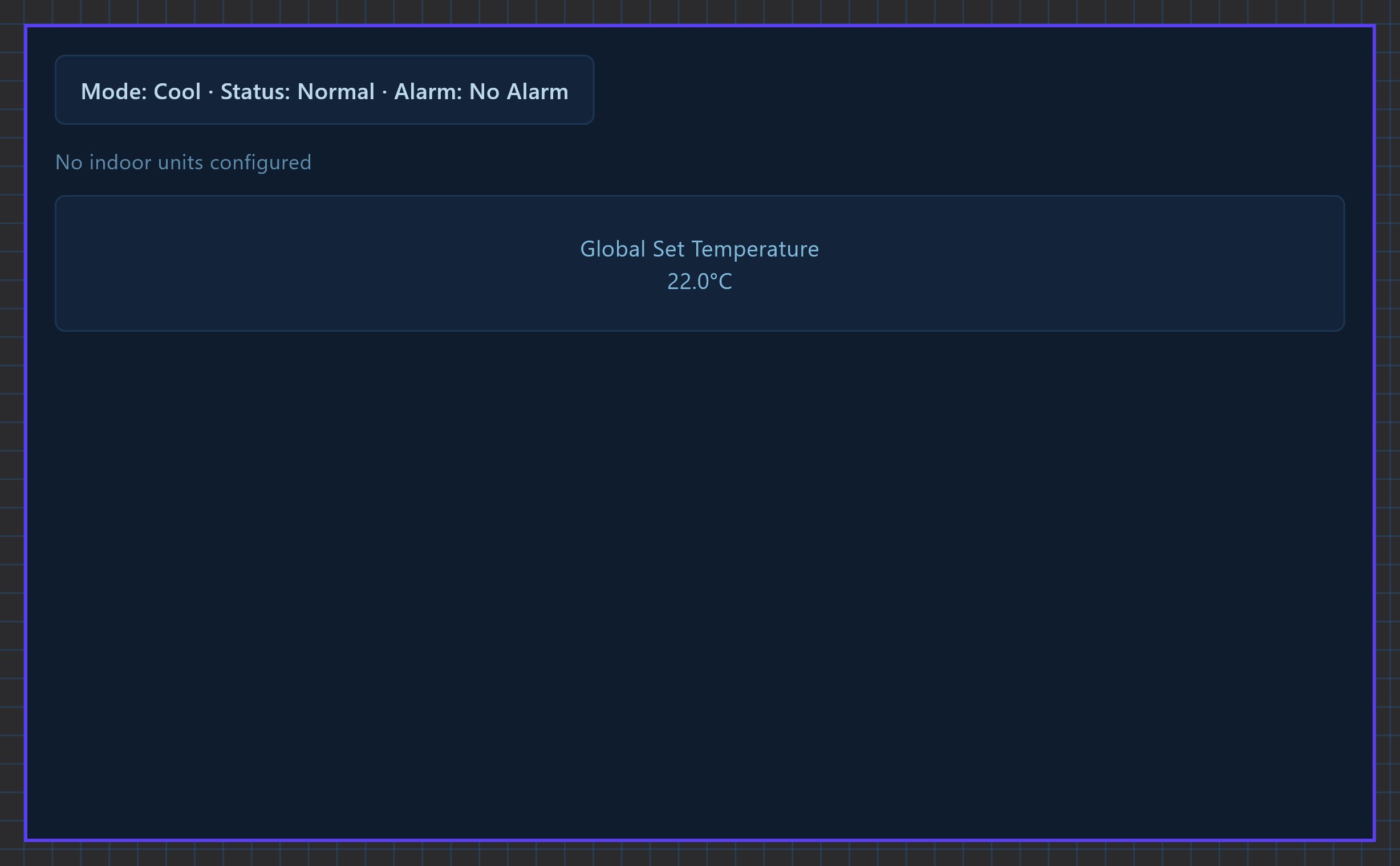
The AC Panel lists the indoor units of a Daikin VRV system. For the selected unit it shows and controls on/off, set point and mode, and it has a global set temperature that is pushed to every unit. The panel has almost no settings of its own: the units and the Modbus connection are set up in the AC Manager.
#When to use it
Use it when the building has a Daikin VRV system with the Daikin Home Automation Modbus adapter (D3net) and you want one page that controls all indoor units. For a single air conditioner or thermostat on KNX use an HVAC object instead. Put the panel alone on its own page: in the apps it fills the whole screen.
#What you need first
- Modbus device. Open Server > Interfaces > RS485 Interface (the AC Manager lists RS485 devices only), turn Enabled on, set the serial parameters, click Configure RTU Devices and add the adapter with the driver Daikin - Daikin VRV Home Automation I/F. Give it the Slave ID set on the adapter. See Modbus devices and datapoints.
- AC Manager. Open Server > Internal services > AC Manager and turn Enabled on.
General tab
| Field | What it does |
|---|---|
| Label | Name of the service in the Configurator. |
| Modbus RTU Device | The adapter you added in step 1. The list shows each device with its slave number. If the list is empty, add the device first. |
Units tab
| Field | What it does |
|---|---|
| Number of Indoor Units | 0 to 64. Adds or removes units at the end of the list. |
| Configure Units (N) | Opens the Indoor Units Editor with Add, Clone, Remove, Up and Down. |
| Name | The name shown in the panel, default AC Unit-1, AC Unit-2 and so on. |
| Group | 1 to 4. The D3net address group of the indoor unit. |
| Unit | 00 to 15. The unit number inside the group. |
| Address | Read-only, for example 1-03. It is Group and Unit written as the Daikin adapter lists them. |
The Group and Unit must match the indoor unit addresses of the Daikin system. The gateway polls each configured unit over RS485.
#Properties
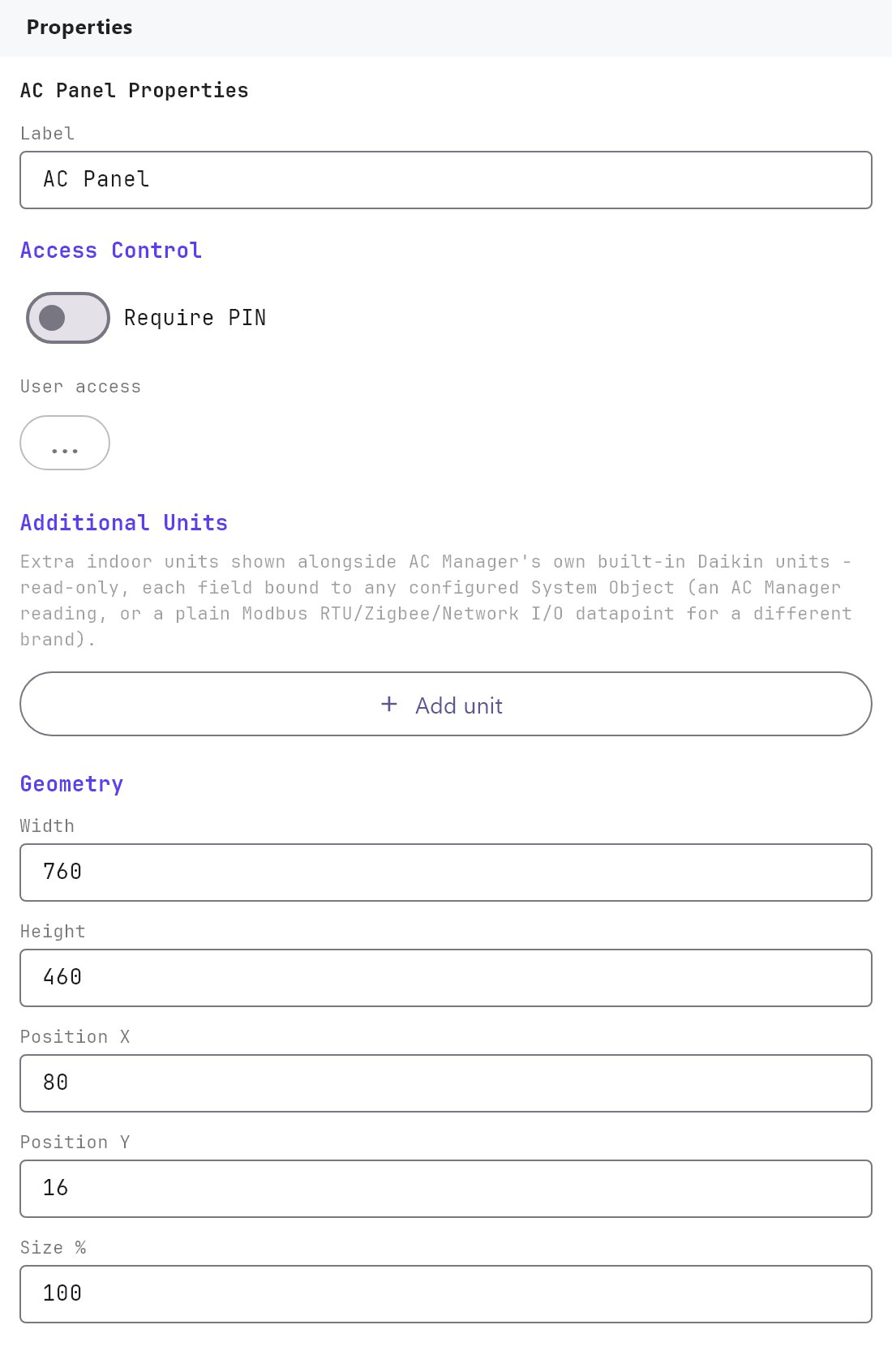
The AC Panel has only the fields below, described in Common properties. There is no Text Style, Protocol or image field.
| Property | What it does |
|---|---|
| Label | A name for the object in the Configurator. It is not shown in the apps. |
| Require PIN, User access | The Access Control fields. |
| Width, Height | Default 760 by 460. Used only for the preview in the editor. |
| Position X, Position Y, Size % | Editor placement. In the apps the panel fills the screen. |
#How it behaves in the apps
- The panel is headed VRF air conditioning, with the number of indoor units and how many are running.
- Unit list: each indoor unit shows its name, room temperature and a mode label. Select one to see its details. Units of the Daikin adapter that are not part of the AC Manager are listed under Additional units and are read only.
- Selected unit: an On / Off switch, Set temperature (a dial from 16 to 30 °C), Room temperature with the difference to the setpoint, Mode (Cool, Heat, Auto and the other modes the unit offers) and Fan speed (Auto, Low, Med, High). When the unit reports a warning or a malfunction, its error code is shown with a Reset Filter button.
- Global settings: a Global set temperature dial that is locked until you press the lock button (Lock setpoints / Setpoints unlocked), and Apply to all to send it to every unit one by one, which can take many seconds on a large system. A Global mode selector and Turn all on and Turn all off buttons act on all units at once.
- If the adapter cannot be reached, the status stays at "--" and the Veltnova client shows "AC adapter not connected".
#Example
A villa with 6 indoor units on the Daikin adapter, slave address 1:
- In RS485 Interface, turn Enabled on, then add an RTU device
Daikin VRV, driverDaikin - Daikin VRV Home Automation I/F, Slave ID1. - In AC Manager, set Enabled on, Modbus RTU Device
Daikin VRV, Number of Indoor Units6. - Open Configure Units and rename the units
Living,Kitchen,Master bedroom,Bedroom 2,Bedroom 3andMajlis, keeping Group1and Units00to05. - Add an AC Panel on a page called
Air conditioningand deploy.
#Tips and common problems
- The unit list is empty in the app: the AC Manager has no units, or the project has not been deployed since you added them.
- All units show "--": the RS485 interface is not enabled, the Slave ID or serial parameters do not match the adapter, or no Modbus RTU Device is selected. Check Diagnostics with the Modbus register test described in Modbus devices and datapoints.
- Wrong unit responds: Group and Unit do not match the Daikin addressing. Compare them with the adapter's unit list.
- Apply to All Units is greyed out: the global control is locked. Press the lock button first.
- The AC Panel is for Daikin VRV through this adapter only. Other air conditioners need an HVAC object with KNX addresses.