
3.24Intercom
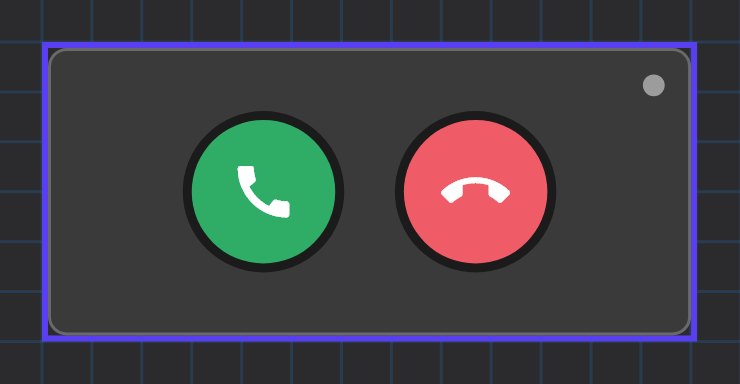
The on-screen answer and close buttons for a door station call, linked to an Intercom Device on the SIP gateway.
The Intercom object is the call panel on a page. It shows the caller's name, an Answer button and a Close button, and it links to one door station that you set up on the gateway.
#When to use it
Place one Intercom object on each page where people should be able to answer a door call, and on any page where you want the missed-call snapshots to appear. The call itself, the door station and the ring groups are set up on the gateway, not on this object.
#What you need first
- The SIP Gateway service enabled and at least one Intercom device added under Internal services > SIP Gateway. Follow Intercom and door stations for that.
- For missed-call snapshots, a Camera object on the same page, with a working RTSP address.
#Properties
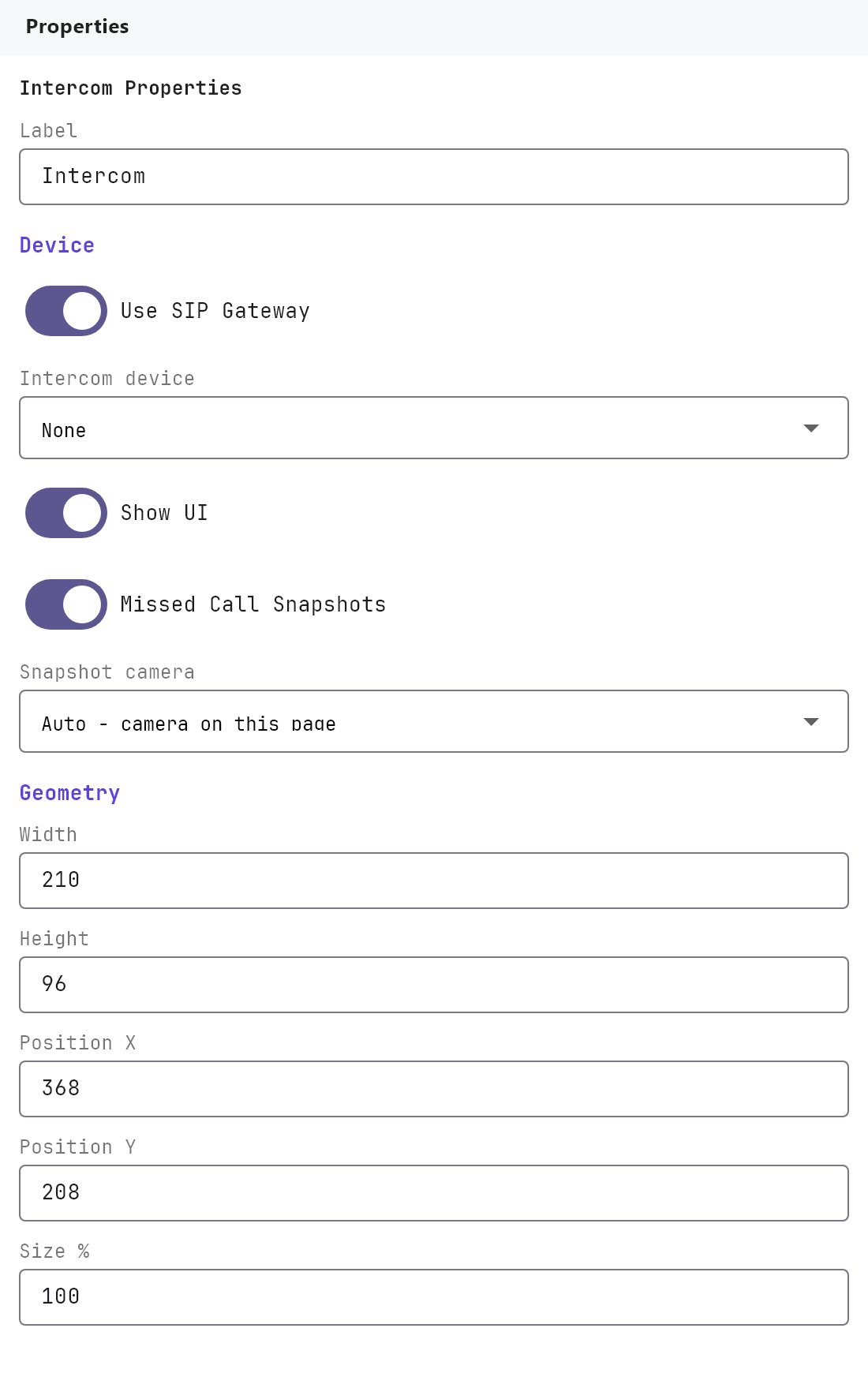
The Label, Text Style and Access Control groups, and the Width, Height, Position X, Position Y and Size % fields, work as described in Common properties. The Intercom object has no Show Label setting and no On/Off image: its look is fixed. The Label is the name shown between the buttons while no call is active.
#Intercom settings
| Property | What it does |
|---|---|
| System SIP Gateway | Enabled (default) or Disabled. When Disabled, the Intercom device, Missed call snapshots and Snapshot camera fields are hidden and this object takes no part in missed-call snapshots. |
| Intercom device | The door station this object belongs to, chosen from the Intercom devices list of the SIP Gateway (shown by its label, or its SIP username if it has no label). Empty by default. If the list is empty, an information box reminds you to add devices under Internal services > SIP Gateway > Intercom devices first. |
| Show UI | Enabled (default) or Disabled. The setting is saved with the project, but the Veltnova client draws the Answer and Close buttons whichever way it is set. |
| Missed call snapshots | Enabled (default) or Disabled. When Enabled, the page shows the saved snapshots of unanswered calls from the linked Intercom device, and the gateway saves one when a call goes unanswered. |
| Snapshot camera | Only shown while Missed call snapshots is Enabled. Auto - camera on this page (default), or any Camera object on the same page as the Intercom object, listed by its label. |
#How it behaves in the apps
- The Veltnova client always shows the two round buttons: Close (red) and Answer (green). The panel's look changes while a call is ringing and when it is connected.
- Answer is enabled only while a call is ringing and Close while a call is ringing or answered. During a call the object shows the caller's name between the buttons, and the buttons scale with the size of the object, so a taller object gives bigger buttons.
- When Missed call snapshots is Enabled and the Intercom device is set, the page lists the snapshots of missed calls for that device. An Intercom object whose Intercom device is left empty shows the missed calls of all devices.
- When a call goes unanswered, the gateway takes the snapshot from the Snapshot camera. With Auto, it uses the camera on the same page as the Intercom object; if there is none, it falls back to the first camera in the project that has an RTSP address.
#Example
A front-door page with the door camera and the call panel:
- In Internal services > SIP Gateway, turn Enabled on and add an Intercom device labelled
Front door(see Intercom and door stations). - On the page
Front door, add a Camera object labelledFront door cameraand fill in its address (see Camera). - Add an Intercom object. Set System SIP Gateway to
Enabled, Intercom device toFront door, Show UI toEnabled, Missed call snapshots toEnabledand Snapshot camera toAuto - camera on this page. - Leave Width at
210and Height at96, or enlarge both for a bigger touch target.
#Tips and common problems
- No snapshot appears for a missed call: check that the camera has an address and Use RTSP is on, and that Missed call snapshots is Enabled on both this object and the Intercom Device.
- If the door station does not ring the apps at all, the cause is on the gateway side, not on this object. See Intercom and door stations and Common problems.
- The Intercom object does not open the door. Use a Switch or an Action Button bound to the lock relay.